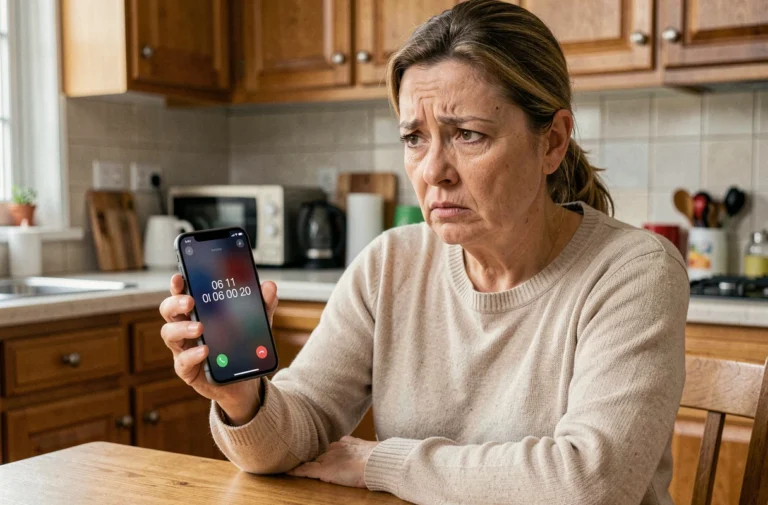
A locked Samsung smartphone does not respond the same way depending on the settings activated before the lock. The forgotten PIN, pattern, or password triggers a counter for attempts that eventually freezes the device. The next steps depend entirely on what was configured beforehand: linked Samsung account, remote unlocking enabled, operational Google backup. Without these prerequisites, some methods often presented as quick fail at the first step.
Samsung Unlock in 5 Minutes: What Works and What Fails
Most guides promise a quick unlock, but the result depends on the settings activated before the lock. Three scenarios stand out clearly.
If the Samsung account was associated with the phone with the “Remote Unlock” option checked in the security settings, SmartThings Find allows you to unlock the screen from a web browser in just a few minutes. This method preserves data and works as long as the device remains connected to the internet.
If this option was not activated, SmartThings Find displays the phone but refuses any unlock action. The service requests an authorization that should have been granted when the screen was still accessible. The same principle applies to Smart Lock (renamed Extend Unlock on recent Galaxy devices): this system keeps the phone unlocked in certain locations or near trusted Bluetooth devices, but only if it was set up beforehand.
Knowing how to easily unlock a Samsung therefore requires checking first which services were active on the device before the lock.
“Forgot PIN” Function on Samsung Lock Screen
Samsung has integrated an option directly on the lock screen that remains unknown to many. After several incorrect attempts, a “Forgot PIN?” or “Forgot Password?” link appears at the bottom of the screen. This mechanism offers to enter the old code to set a new one, without going through a reset.
This approach works in a specific case: the owner remembers an old PIN or password used on the same device. Samsung retains the last lock identifier in memory, providing an exit when the new code has been changed recently and forgotten in the process.
Conditions for This Method to Succeed
- The phone must be running a recent version of One UI, where Samsung offers a return to the last known code from the lock screen
- The owner must remember the previous PIN, password, or pattern (not the current one, but the one before)
- The maximum number of incorrect attempts must not have triggered the automatic reset yet, if this security option was activated
When these three conditions are met, the unlock takes less than two minutes without any data loss. When the old code is also forgotten, this option closes and one must move on to the next methods.
Remote Unlock via SmartThings Find
SmartThings Find (formerly Find My Mobile) remains the recommended reference method by Samsung to unlock a Galaxy remotely. From a computer or another phone, simply log into the Samsung account associated with the locked device, then select “Unlock”.
The phone then removes the active screen lock (PIN, pattern, password). Personal data, photos, applications, and files remain intact. This is the only official Samsung method that preserves all the content of the phone.
Why SmartThings Find Often Fails
Two conditions regularly block this procedure. First, the Samsung account must have been created and logged in on the phone. A Galaxy used without a Samsung account (which is common) will simply not be visible in SmartThings Find.
Next, the “Remote Unlock” option must have been manually activated in Settings > Security and Privacy > Location. By default, this setting is not always checked. Without this prior authorization, the service locates the phone but refuses to remove the screen lock.
The phone must also remain connected to the internet (Wi-Fi or mobile data). A device in airplane mode or with a dead battery will not receive the unlock command.

Reset via Recovery Mode: Last Resort on Locked Galaxy
When no account method works, Recovery mode remains the only exit. This procedure performs a complete factory reset that erases all data stored locally on the phone: photos, unsynchronized contacts, applications, messages.
The manipulation varies slightly depending on the Galaxy models, but the principle remains the same:
- Completely turn off the phone
- Simultaneously hold the Volume Up and Power buttons until the Samsung logo appears, then release the Power button while keeping Volume Up pressed
- In the Recovery menu, navigate with the volume buttons to “Wipe data/factory reset” and confirm with the Power button
- Wait for the process to finish, then select “Reboot system now”
The phone restarts as if it were brand new. The entire initial setup must be redone.
FRP Lock After Reset
After a factory reset, Android activates the Factory Reset Protection (FRP). This mechanism requires entering the Google account previously associated with the phone before allowing any use. The FRP prevents a third party from using a stolen phone after a simple reset.
For the legitimate owner, this means that it is essential to know the Gmail address and the password of the Google account linked to the device. Without these credentials, the phone remains locked on the Google verification screen, even after the complete reset.
The methods that actually work on a locked Samsung can be counted on one hand, and each depends on settings activated when the phone was still accessible. The best protection against a permanent lock remains preventive configuration: enabling remote unlocking in SmartThings Find, linking a Samsung account, and regularly syncing data with Google. A properly prepared Galaxy unlocks in minutes. An unconfigured Galaxy requires a total reset.