You just unboxed your Sony headphones, you hold down the power button, and the headphones connect… to your TV instead of your smartphone. This scenario is common as soon as a Bluetooth headset has been paired with multiple devices. Understanding why, and especially how to regain control, avoids many daily frustrations.
Bluetooth connection conflict between smartphone, PC, and TV
A Sony headset remembers the list of devices it has been paired with. Upon powering on, it tries to reconnect to the last device used, or sometimes to the first one it detects. If your TV, laptop, and smartphone are all on and within range, the headset may choose the wrong device without warning.
This behavior is not a bug. Bluetooth operates on reconnection priority, and each source device can also attempt to “grab” the headset. A Windows PC, for example, sometimes automatically restarts the connection in the background.
The most reliable workaround is to disable Bluetooth on the devices you are not using at that moment. It’s simple, but it remains the only guaranteed method when your headset does not have multipoint functionality. On models that offer it, you can maintain two active connections simultaneously and switch audio from one to the other via the Sony Headphones Connect app.
Before trying to connect a Sony headset via Bluetooth to a new device, always check that it is not already connected to another terminal. As long as this active connection exists, the headset remains invisible in the Bluetooth list of your new device.
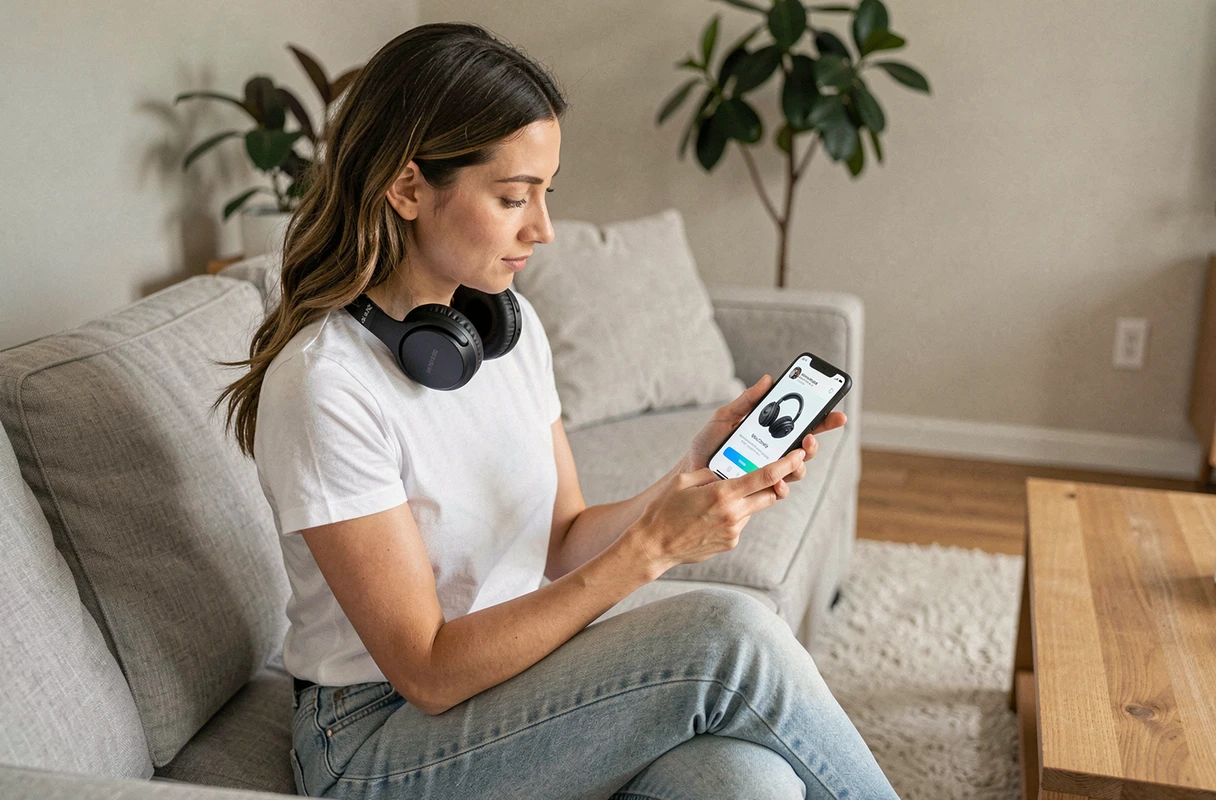
Sony Bluetooth pairing mode: correctly activate pairing
Pairing is the initial step that registers a device in the headset’s memory. It only happens once per device. After that, the headset reconnects automatically without going through this step again.
First power on of the headset
On the very first power-up, most Sony headsets automatically enter pairing mode. You usually hear a voice prompt like “Bluetooth pairing.” The indicator light flashes quickly in blue, sometimes alternating blue-red depending on the model.
If the headset has already been paired with a device, it will not automatically revert to pairing mode. You will need to force this mode manually.
Manually forcing pairing mode
The method varies slightly from model to model, but the principle remains the same across the Sony range:
- With the headset off, hold the power button down for several seconds, beyond just turning it on, until you hear the pairing voice prompt or see the indicator light flashing quickly.
- On models controlled by the Sony Headphones Connect app, you can also initiate pairing from the app itself, which simplifies the process.
- For true wireless earbuds (WF range), pairing is often triggered by keeping both earbuds in the open case, with a finger on the touch area for a few seconds.
Once the mode is activated, the headset remains discoverable for a few minutes. After this time, it returns to normal mode, and you will need to start over.
Connecting a Sony headset to an Android smartphone or iPhone
You have activated pairing mode. Now let’s move to the device side.
On Android
Open the settings, then the Bluetooth section. Enable Bluetooth if it is not already on, then wait for your headset’s name to appear in the list of available devices. Select it. The connection will establish in a few seconds, and a confirmation sound will be heard in the headset.
On iPhone
The process is almost identical: Settings, Bluetooth, then select the headset from the list. On iOS, the device may ask for pairing confirmation. Accept, and the headset will then appear in your registered devices.
Have you noticed that your headset does not show up in the list? Check that no other device is monopolizing the connection. This is the most common cause of detection failure, well before any potential hardware issue.
Bluetooth connection of Sony headset on Windows PC and TV
On a Windows PC
Go to Settings, then Devices (or Bluetooth & devices depending on the version of Windows). Click on “Add a Bluetooth device.” The headset in pairing mode will appear in the list.
One point to watch: Windows sometimes offers two entries for the same headset, one for stereo sound (high-quality audio), the other for hands-free mode (reduced quality with a microphone). Select the stereo profile to listen to music or watch videos.
On a TV
Bluetooth compatibility varies by TV brands and models. Some TVs do not support Bluetooth headsets, even if they use Bluetooth for their remote controls.
When the TV allows it, the menu is usually found in the audio or sound settings, then in a section “audio output” or “Bluetooth devices.” Activate the search and select your headset.
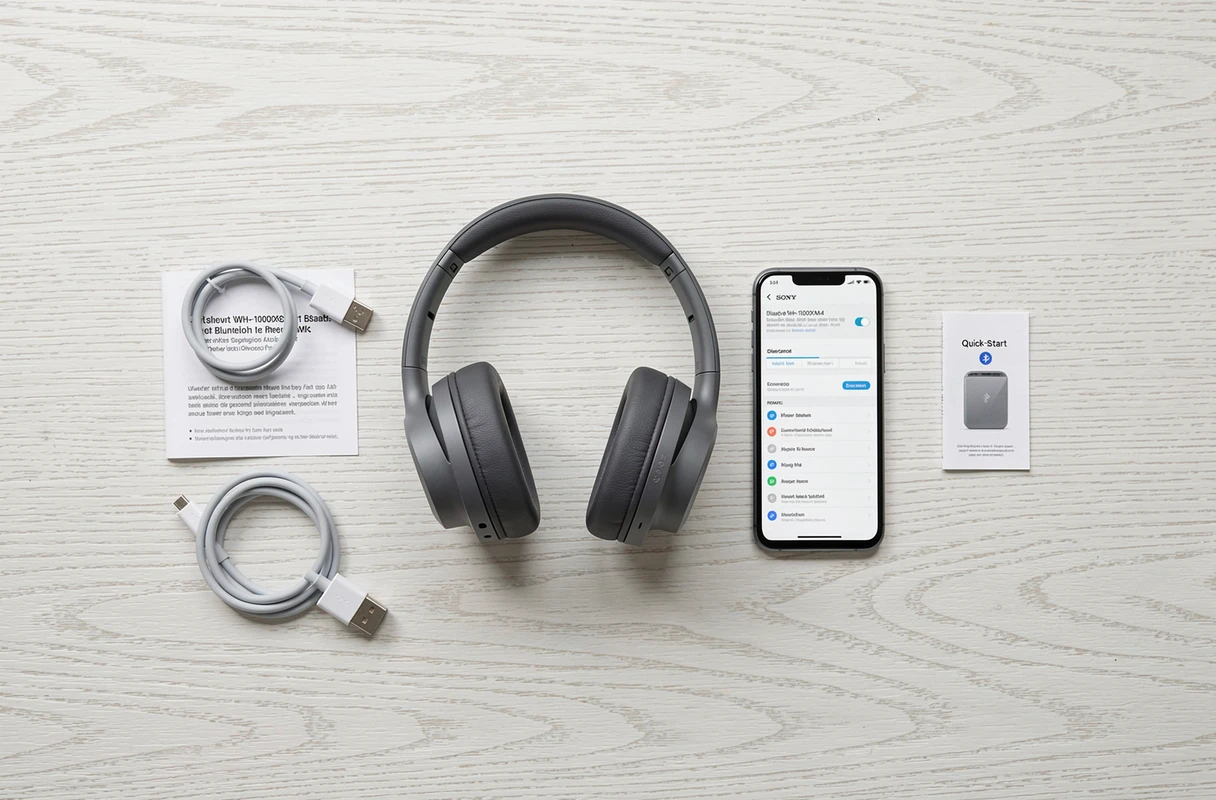
Sony Bluetooth headset connection issues: real fixes
When nothing works despite proper pairing, a few checks are necessary before considering a hardware defect.
- Keep other active Bluetooth devices away from the area. An overly crowded signal environment can prevent the headset from being detected.
- Remove the headset from the list of registered devices on your smartphone or PC, then start pairing from scratch. This purges corrupted connection data.
- Reset the headset to factory settings. On most Sony models, this is done via a button combination held for a few seconds, documented in the quick guide for the model.
- Check that the headset is sufficiently charged. On very low battery, some models disable Bluetooth to preserve remaining energy.
The reset clears all registered pairings. You will need to reconnect each device individually after this operation.
Bluetooth remains a seemingly simple protocol, but sensitive to its environment. A well-configured Sony headset, with controlled pairings and reasonable use of multipoint, works reliably for years. The reflex to maintain: before looking for a malfunction, always check which device holds the active connection.