
The Orange webmail does not offer any native bulk export function for emails to an external hard drive. This limitation drives thousands of users to community forums every year, where the responses often boil down to a copy-paste of the Thunderbird procedure without mentioning recent prerequisites.
The problem is more technical than it seems, especially since the redesign of Mail Orange rolled out from February 14, 2024, which changed the location of menus and the rules for connecting to third-party software.
Orange application password: the prerequisite that older tutorials ignore
Since 2023, Orange recommends creating a dedicated password for third-party applications instead of using the main account password. This secondary password is generated from the Orange customer area, in the “Manage my account” section dedicated to third-party access.
Tutorials published before this date still indicate entering the usual password directly into Thunderbird or Outlook. This information is now outdated. Attempting to connect with the old password may result in an authentication failure without an explicit error message, leading to the belief that there is a server issue.
Before configuring any email software, the first step is to log into the customer area, generate this application password, and keep it in a safe place. Without this step, the rest of the procedure will systematically fail.
To understand the complete process, a detailed guide explains how to back up your Orange emails to an external hard drive while taking into account these new security requirements.
Setting up Thunderbird in IMAP to retrieve Orange emails
Thunderbird remains the most suitable software for this operation. It is free, works on Windows, macOS, and Linux, and natively supports the IMAP protocol, which allows for the synchronization of an entire Orange mailbox, including subfolders.
Connection settings for the Orange server
The configuration requires the following settings:
- Incoming IMAP server: imap.orange.fr, port 993, SSL/TLS connection
- Username: the full Orange email address (with @orange.fr or @wanadoo.fr)
- Password: the application password generated from the customer area, not the main account password
Once these settings are entered, Thunderbird gradually synchronizes all the folders of the account. The duration depends on the volume of emails stored on the server. For a mailbox containing several thousand messages, the initial synchronization may take several tens of minutes.

Check that all folders are properly retrieved
By default, Thunderbird does not necessarily subscribe to all remote folders. A right-click on the account name, then “Subscribe,” displays the complete list of folders present on the Orange server. You must manually check those that do not yet appear in the left pane.
This point is often the source of unintentional losses. Users think they have retrieved everything when some custom subfolders have never been synchronized. Checking the subscription list before any local copy helps avoid discovering the oversight too late.
Copying synchronized emails to an external hard drive
Once the IMAP synchronization is complete in Thunderbird, the messages remain stored on the remote server. They must be transferred to local folders for them to physically exist on the machine, and then copied to the external hard drive.
Creating local folders in Thunderbird
Thunderbird offers a “Local Folders” section in the left pane, independent of any online account. You simply need to select the desired messages from an IMAP folder and drag them to a local folder created for this purpose.
This operation physically downloads each message and its attachments. The total size can be substantial if the mailbox contains years of correspondence with attached files.
Locating and copying the Thunderbird profile
Local folders are stored in the Thunderbird profile directory. On Windows, this profile is usually found in the AppData/Roaming/Thunderbird/Profiles folder. The files have names without extensions and contain messages in mbox format.
To back up these files to an external hard drive:
- Completely close Thunderbird (check that no processes are running in the background)
- Copy the entire profile folder to the external hard drive
- Keep the folder structure intact to restore the profile later if necessary
- Clearly label the backup folder with the date to avoid confusion between versions
Copying the entire profile rather than isolated files ensures that folders, filters, and the filing structure remain usable in case of restoration.
Limitations of Orange webmail for email export
The new Orange webmail, gradually rolled out since February 2024, has revamped the interface. The menu paths have changed, rendering screenshots from older guides obsolete. However, the native export function remains absent: the Orange webmail still does not allow for bulk email export to a local file.
The only option from the webmail is to print each email individually as a PDF via the browser’s print function. This method works for a few isolated messages but is unusable for backing up hundreds or thousands of emails. It also does not preserve attachments in their original format.
Field reports vary on this point: some users report that drag-and-drop from the webmail to the desktop works intermittently in certain browsers, but this behavior is neither documented nor reliable. Thunderbird via IMAP remains the only reproducible method for a complete backup.
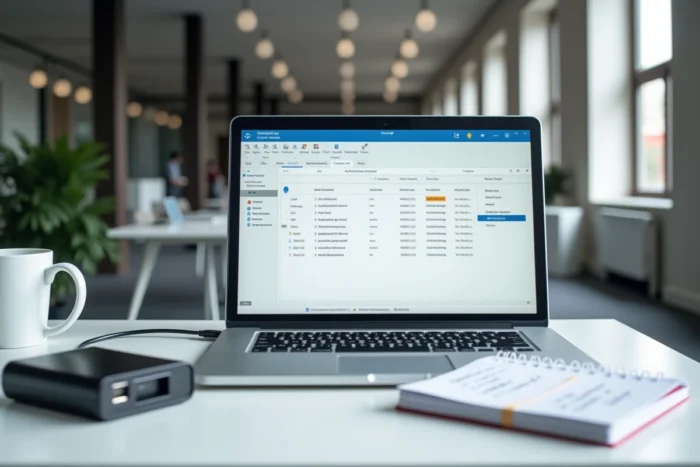
The mbox format generated by Thunderbird is readable by most email clients and third-party archiving tools. Storing the backup on an external hard drive disconnected from the network protects the data against server failures, accidental deletions, and potential account closures. Repeat the operation every few months to keep the local copy up to date.